
A LinkedIn profile picture should help people recognize you and support the professional impression created by the rest of your profile.
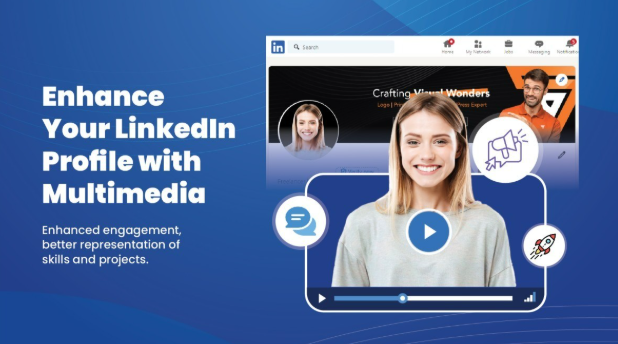
Check your LinkedIn profile picture before you publish it
Upload your image, preview the crop in a LinkedIn-style layout, adjust the position and download a high-resolution version.
Use a Current and Recognizable Photo
Choose a recent photo that still resembles how you look in meetings, interviews and professional conversations.
An old photo or heavy retouching can create a mismatch between your online profile and your real appearance.
Crop for Professional Context
A head-and-shoulders crop usually gives enough facial detail without making the image feel like an ID photo.
Leave some space above your hair and around your shoulders so the circular crop does not feel cramped.
For more help with framing, read How to Crop a Profile Picture.
Choose Clothing With Intention
Wear something that feels appropriate for your industry and the type of professional impression you want to create.
Expensive clothing is not necessary. Good contrast, clean presentation and a natural fit usually matter more.
Use a Natural Expression
A small genuine smile often feels approachable, while a calm neutral expression can work well for more formal roles.
The most important thing is that the expression feels natural rather than forced.
Use Clean Lighting and a Calm Background
Soft, even lighting helps facial features remain visible at small sizes. Avoid strong shadows across the eyes or face.
A simple background usually works better than a busy office, event or outdoor scene that competes for attention.
Check the Search-Result Thumbnail
LinkedIn often displays your photo in small identity areas such as search results, comments and connection requests.
Make sure your face remains recognizable even when the image is reduced to thumbnail size.
LinkedIn Profile Picture Size and Quality
Start with the highest-quality original image available. A square high-resolution source gives you more flexibility when cropping and helps reduce quality loss during resizing.
For practical dimensions, see our Profile Picture Size Guide.
If your photo looks soft or unclear after cropping or uploading, read Why Profile Pictures Look Blurry.
LinkedIn Profile Picture Checklist
- The photo is recent and still looks like you.
- Your face is immediately recognizable at small size.
- The crop leaves breathing room around your hair and shoulders.
- The background is simple and not distracting.
- The lighting is even and natural.
- Your expression feels confident and approachable.
- The image looks sharp on both mobile and desktop.
A Reliable Framework for Choosing a LinkedIn Profile Picture
A strong LinkedIn profile picture combines technical quality with the right professional impression.
- Professional relevance: does the image fit your role and audience?
- Approachability: does your expression feel open and natural?
- Current appearance: will people recognize you in real life?
- Clean framing: is your face clearly visible without feeling cramped?
- Technical quality: is the image sharp, well lit and high resolution?
Step-by-Step Improvement Workflow
- Choose a recent head-and-shoulders photo.
- Use a calm background with clear separation from your face.
- Look toward the camera.
- Crop the image with enough breathing room.
- Check the smallest LinkedIn-style preview.
- Compare the photo beside your name and professional headline.
- Download a clean high-resolution version.
You can test the result directly with our LinkedIn Profile Picture Test.
How to Compare Two Strong LinkedIn Photos
If you are choosing between two good options, keep the crop size similar so you are comparing the photos rather than the framing.
Look at each image for a few seconds and ask:
- Which photo makes you easier to recognize?
- Which image feels more credible?
- Which expression feels more natural?
- Which background is less distracting?
- Which image better matches your professional role?
Final Quality Check Before Upload
View the exported image at normal profile-picture size, not only enlarged.
Confirm that the face is sharp, the crop feels balanced and the background does not pull attention away from the subject.
Keep the original high-resolution file so you can create a new crop later without repeatedly compressing the same image.
Frequently Asked Questions
What makes a good LinkedIn profile picture?
A good LinkedIn profile picture is current, recognizable, well lit, professionally appropriate and clear at a small size.
Should I smile in my LinkedIn profile picture?
You do not have to smile, but your expression should feel natural and match the professional impression you want to create.
Should my LinkedIn profile picture show my shoulders?
A head-and-shoulders crop often works well because it provides enough facial detail while still feeling natural.
What background should I use?
A simple, calm background that creates enough contrast with your face is usually the safest choice.
How large should my LinkedIn profile picture be?
Use a high-resolution square source image. A master file between 1080 × 1080 and 2048 × 2048 pixels is a practical option for most profile-picture workflows.
Can I test my LinkedIn profile picture before uploading it?
Yes. Use our LinkedIn Profile Picture Test to preview the crop and framing before changing your actual LinkedIn photo.
Use the free LinkedIn profile picture test to compare your image in context before uploading it.